Connect your assistant with OpenRouter
Create an account, add credits, save your API key and choose a preconfigured model.
The assistant is optional. You will need MathDesk installed, access to your email, and a payment method if you choose a paid model.
1. Create your account
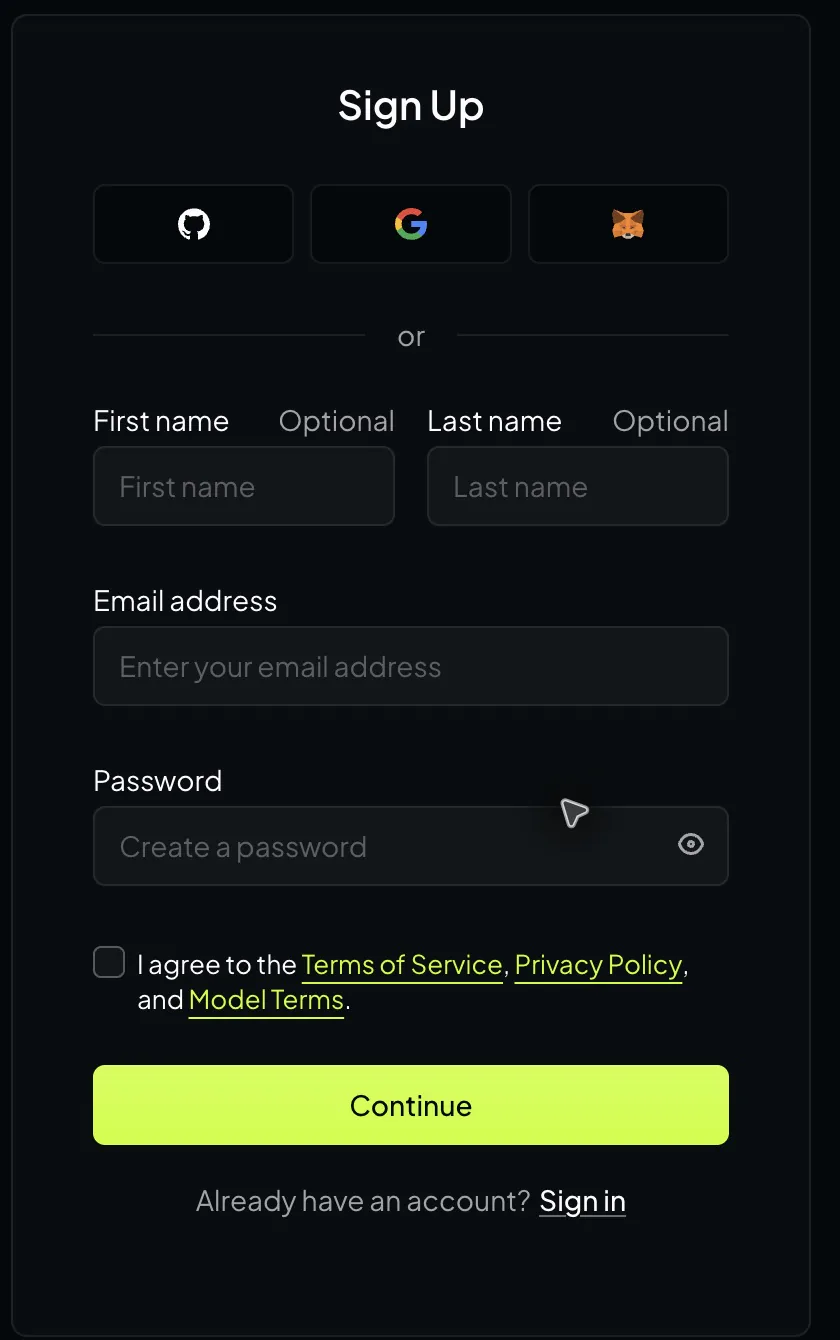
Go to openrouter.ai and choose Sign Up. Enter your email and create a password. Review the terms, tick the agreement box and click Continue.
2. Verify your email
Open the email sent by OpenRouter and click the verification link. Check your spam folder if it has not arrived. The link opens OpenRouter in a new tab. Continue there.
Use your own email account so you can sign in again later.
3. Copy your API key
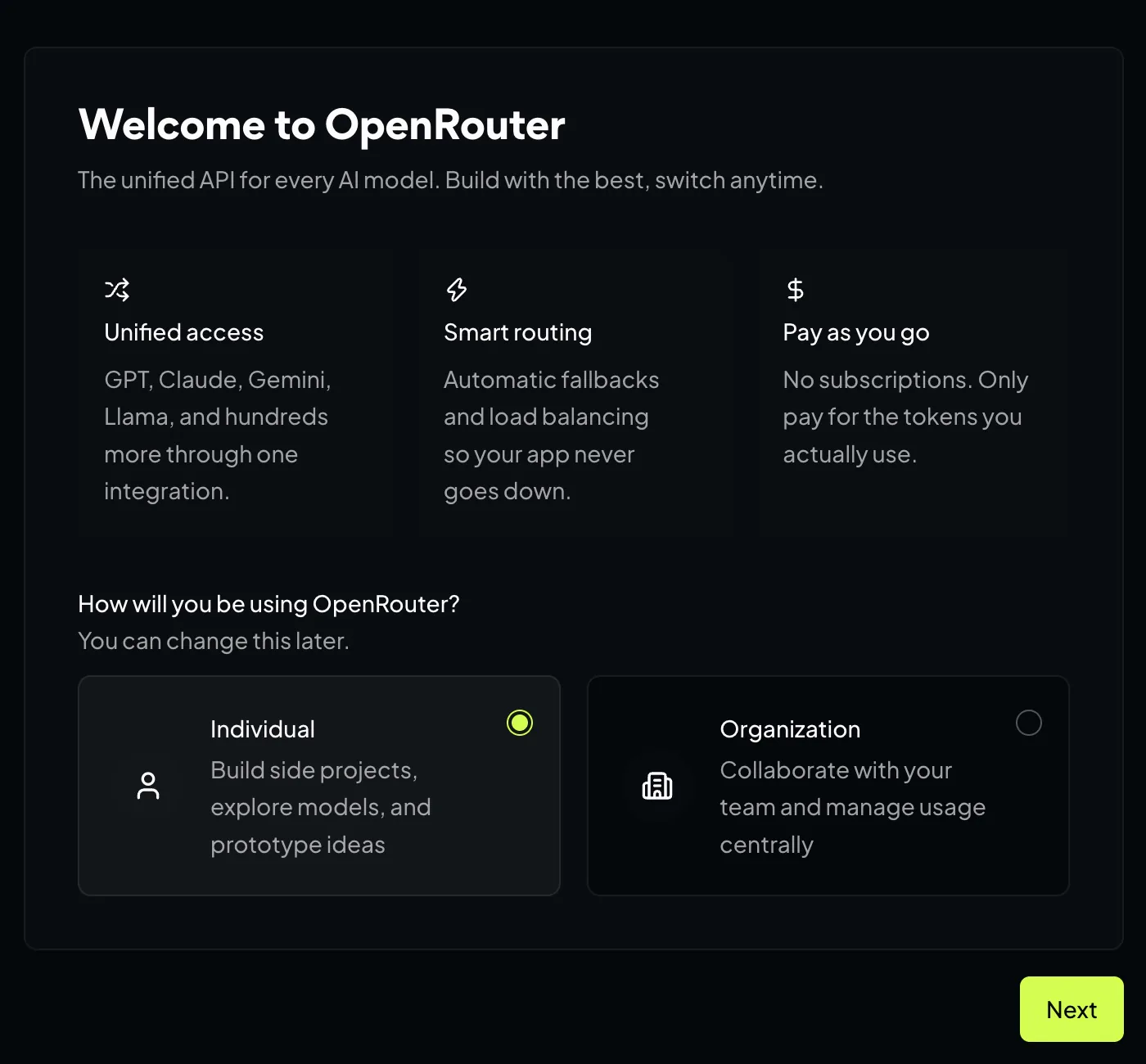
On the welcome screen, choose Individual, then Next. OpenRouter may create your first API key automatically. Click Copy API key to clipboard and keep it somewhere private, then finish the welcome screens.
Missed the key? Create another one
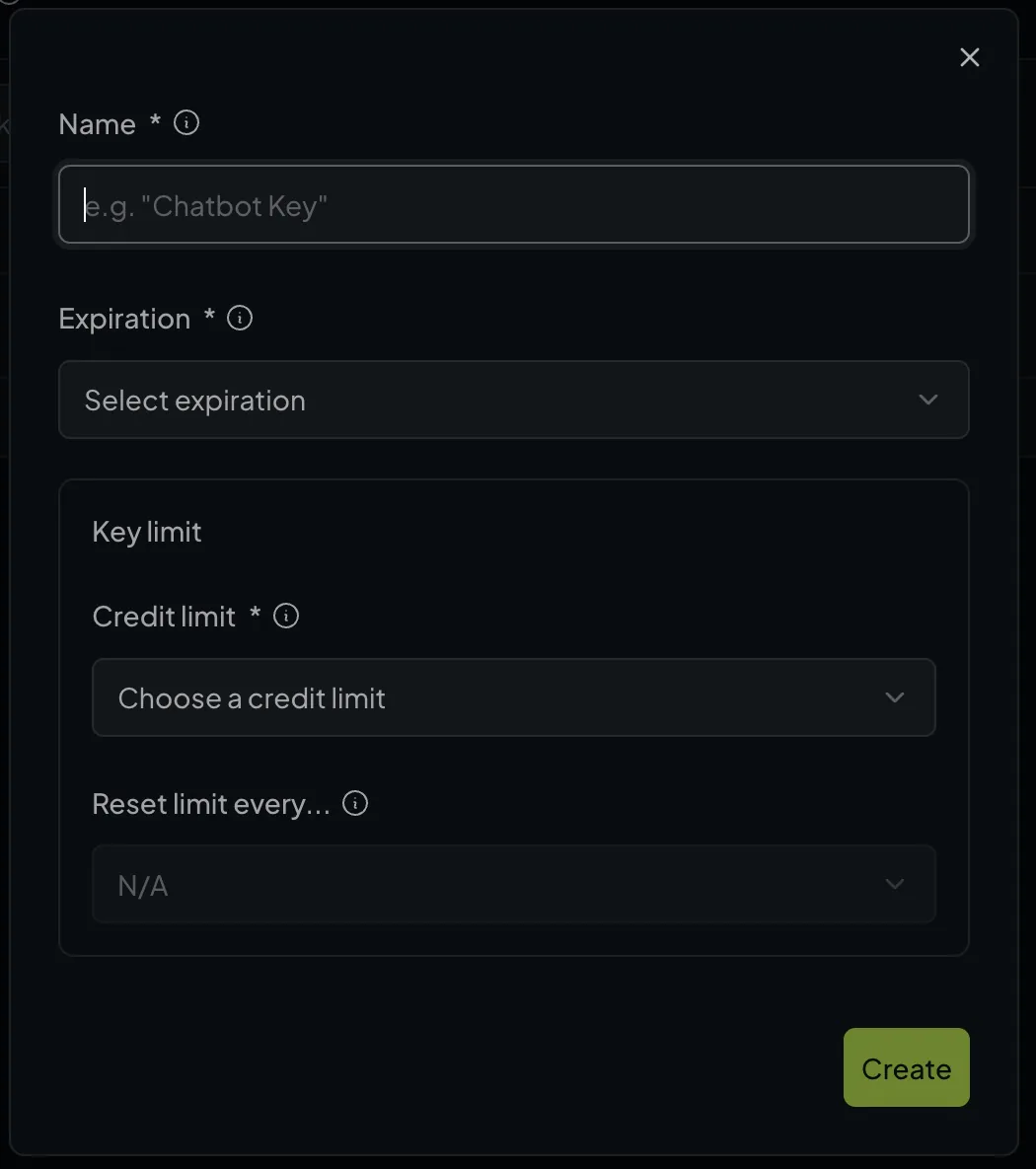
Open API Keys and click New Key. Name it MathDesk, choose an expiry and a credit limit you are comfortable with, then click Create. Copy the key immediately.
4. Add credits
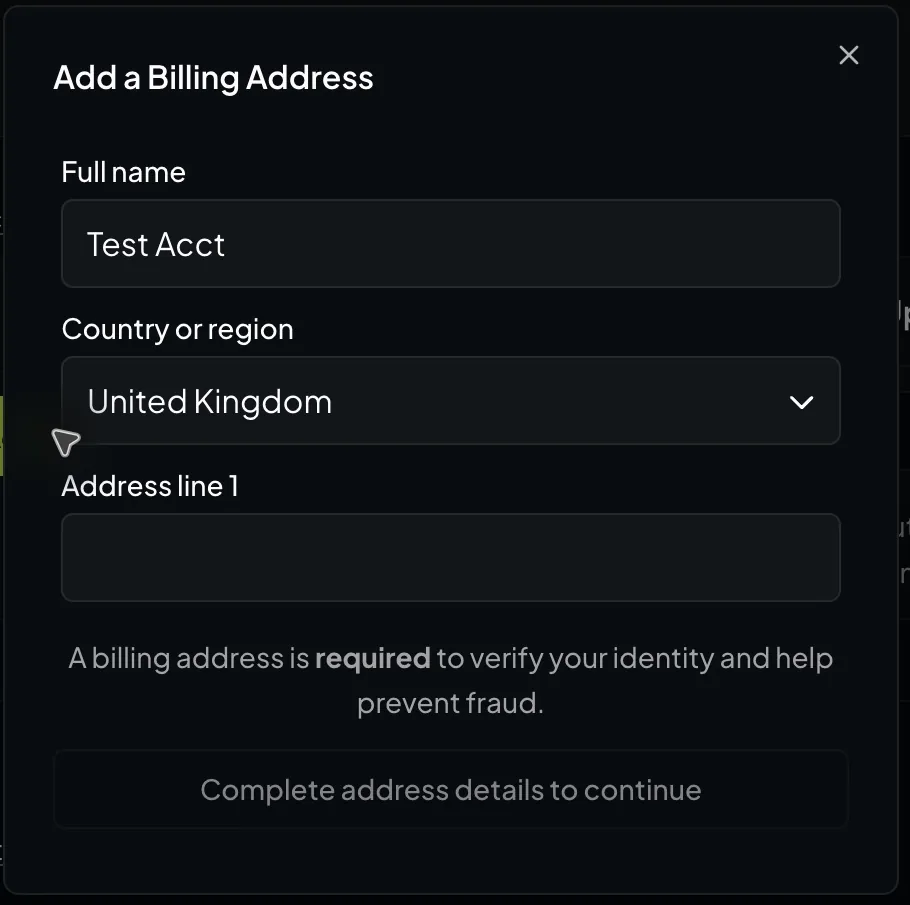
Open Credits in your OpenRouter account and click Add Credits. Enter your real billing name, country and address when asked, then follow the payment prompts to add credits for paid models. Check the amount, currency and fees before paying.
If you need to save a payment method separately, use Add a Payment Method on the Credits page. Auto top-up is optional.
5. Save your key in MathDesk
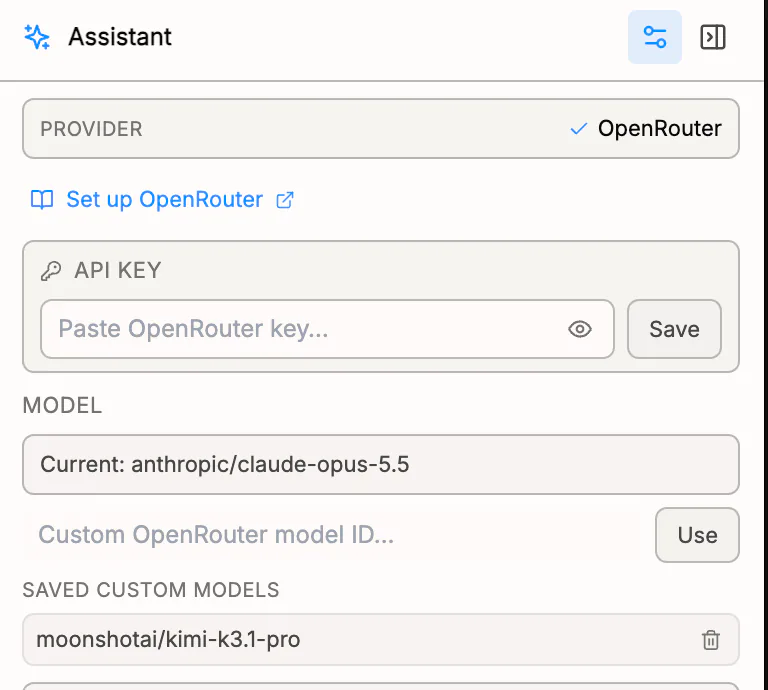
In MathDesk, open the Assistant sidebar and click its Settings button at the top. Under API key, paste your OpenRouter key and click Save.
6. Choose a model
Click the Assistant's Settings button again to return to chat. Click the model name above the message box to open the model picker.
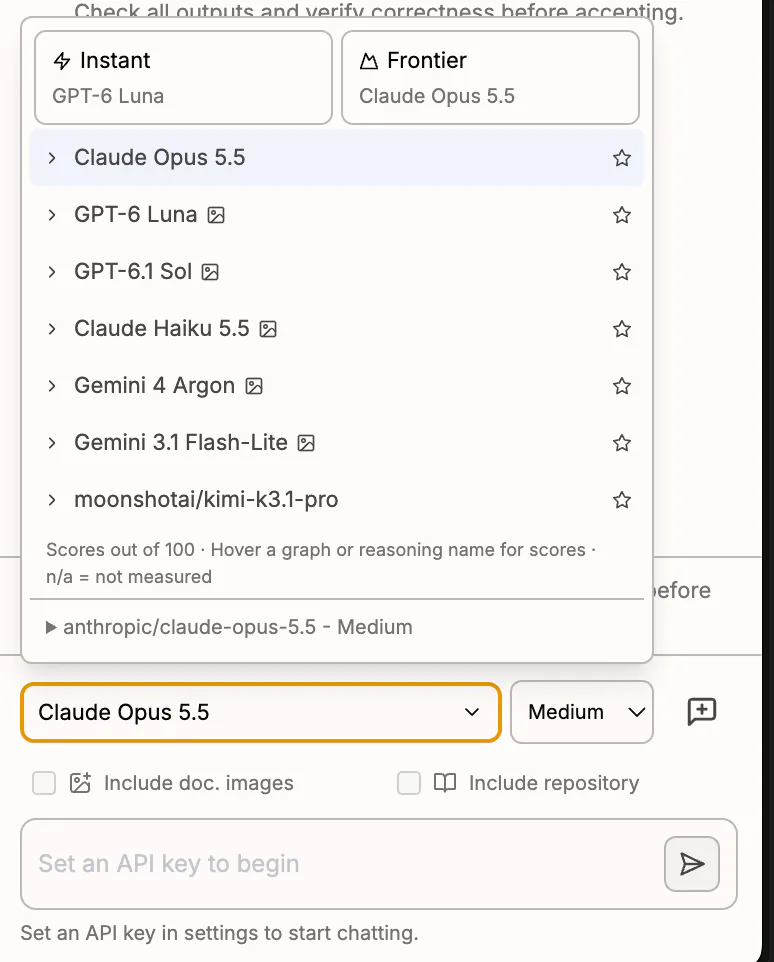
Choose a model from the list, or use the Instant or Frontier shortcut at the top. You can change models later using the same picker.
You are ready to send a message. Custom model IDs are optional and covered at the end of this guide.
7. Send a first message
Confirm your chosen model is shown above the message box. If MathDesk asks to unlock a saved key, complete the system prompt privately. Send a simple message such as "Hello, what can you help me do in MathDesk?"
A reply confirms the connection works. The assistant can read or edit your document, so check its work before relying on it. Requests send your prompts and relevant document context to the AI service.
No reply? Check these first
- Key error: paste the complete OpenRouter key again and click Save.
- Insufficient credits: check your OpenRouter balance and the key's spending limit.
- Model error: choose another preconfigured model in the picker. If using a custom ID, check that it is exact and still available.
Optional: use a custom model slug
The model picker already includes preconfigured models. Use a custom slug only if you want a model that is not in the list.
A model slug is the exact model ID in the form provider/model-name. It is separate from your API key.
- Open OpenRouter Models and search for the model you want.
- Open its page. Copy the model ID beneath the title using the small copy icon.
- In MathDesk Assistant settings, paste it into Custom OpenRouter model ID… and click Use.
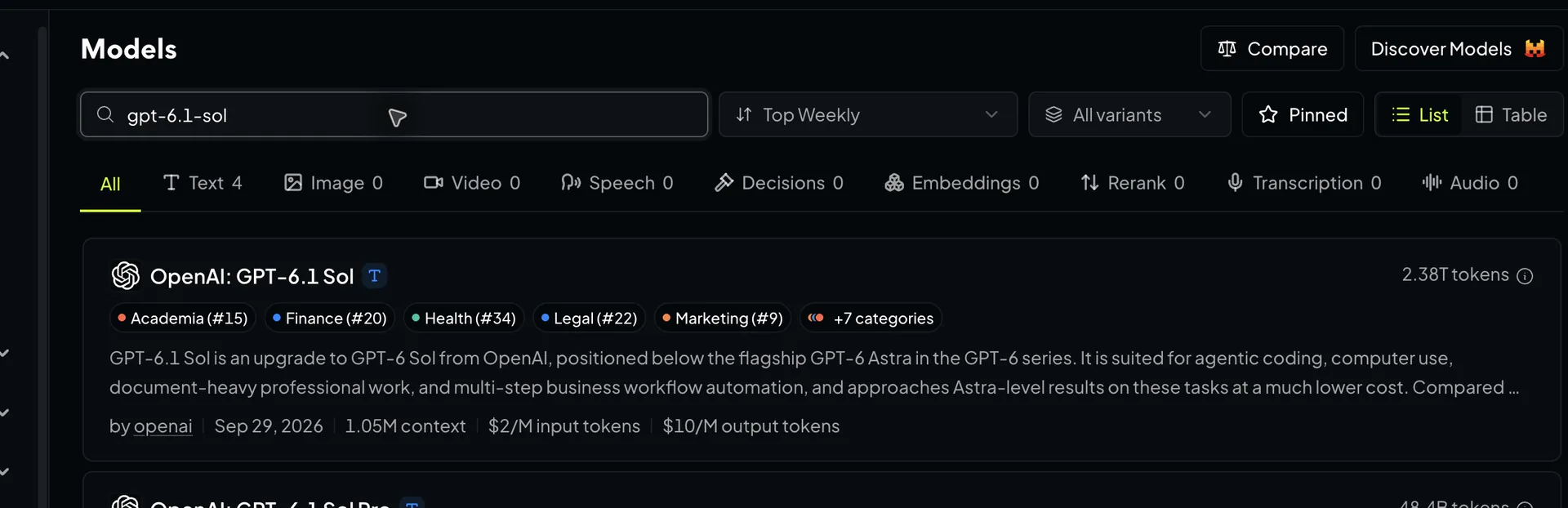
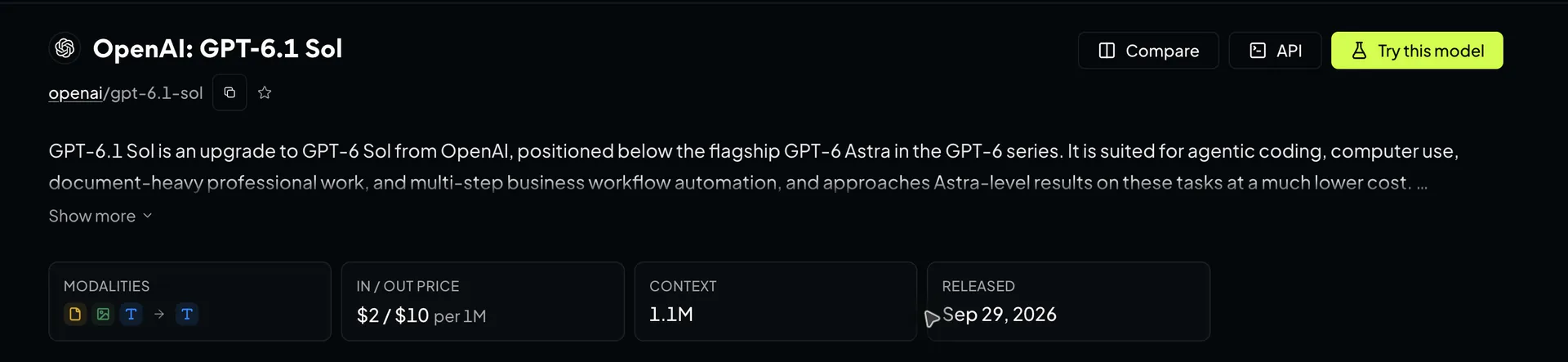
Check the model's current price and capabilities before using it. Preserve any suffix that is part of your chosen ID.